Integrations
HubSpot integration
Tandem connects to HubSpot to pull company data into your plans and log completed tasks back to the CRM automatically.
Connecting HubSpot
- Go to Settings → Integrations
- Click Connect HubSpot
- Authorise Tandem in the HubSpot OAuth flow
- Select the portal you want to connect
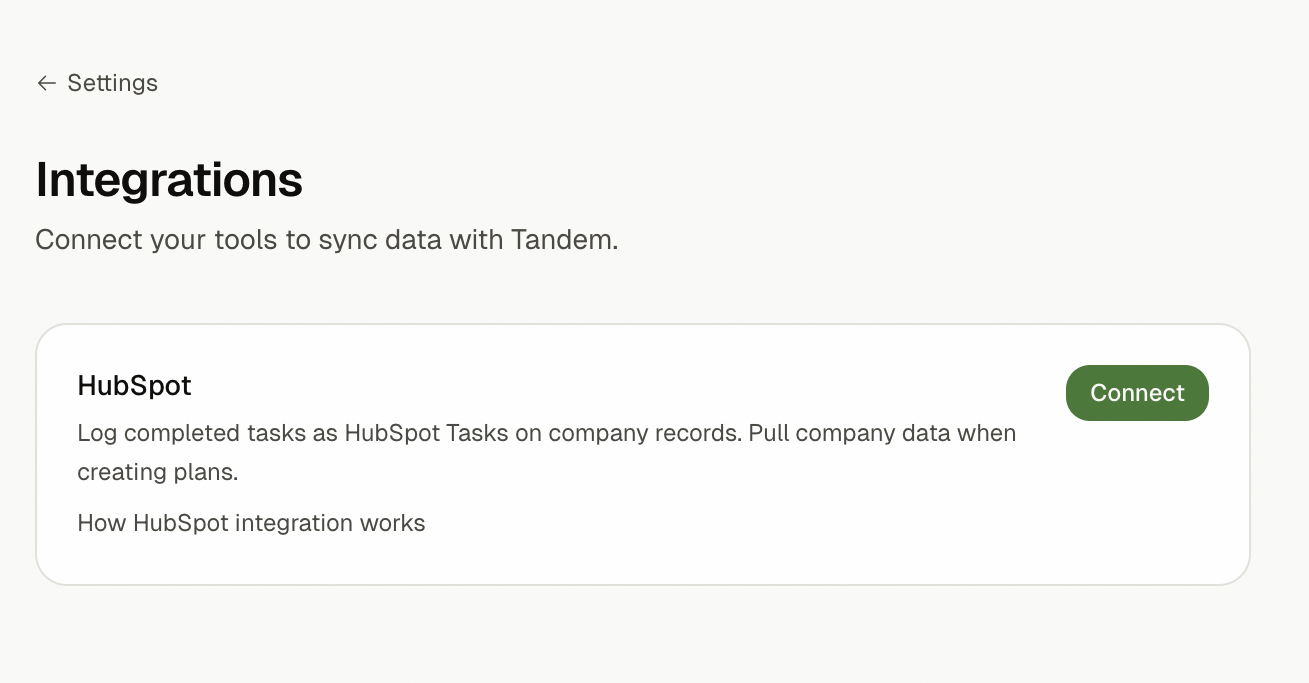 SS-025 · Settings Integrations page showing HubSpot connect button
What syncs
From HubSpot to Tandem:
- Company name and basic details when creating a plan
From Tandem to HubSpot:
- Task completions logged as a structured note on the linked HubSpot company
What the completion note looks like
When you complete a task in Tandem on a plan linked to a HubSpot company, Tandem logs a note on that company's record. The note includes:
- Task — the task name from Tandem
- Plan — the plan name
- Completed by — the Tandem team member who marked it complete (not necessarily the OAuth user who connected HubSpot)
- Completed on — the completion timestamp
- Description — the original task description, for context
You'll find these notes in the Activities tab of the company record in HubSpot.
Tandem currently logs completions as HubSpot notes rather than native HubSpot tasks. The native-task path requires a granular OAuth scope that is being rolled out across HubSpot accounts; once it lands on Tandem's developer account, completed work will appear in the company's Tasks section as well as the Activities timeline.
Auto-logging
When a task is marked done, Tandem can automatically log it to HubSpot. You can configure this per-plan:
- Always log — every completed task creates a HubSpot activity
- Ask me — Tandem prompts you after each completion
- Never log — no automatic logging for this plan
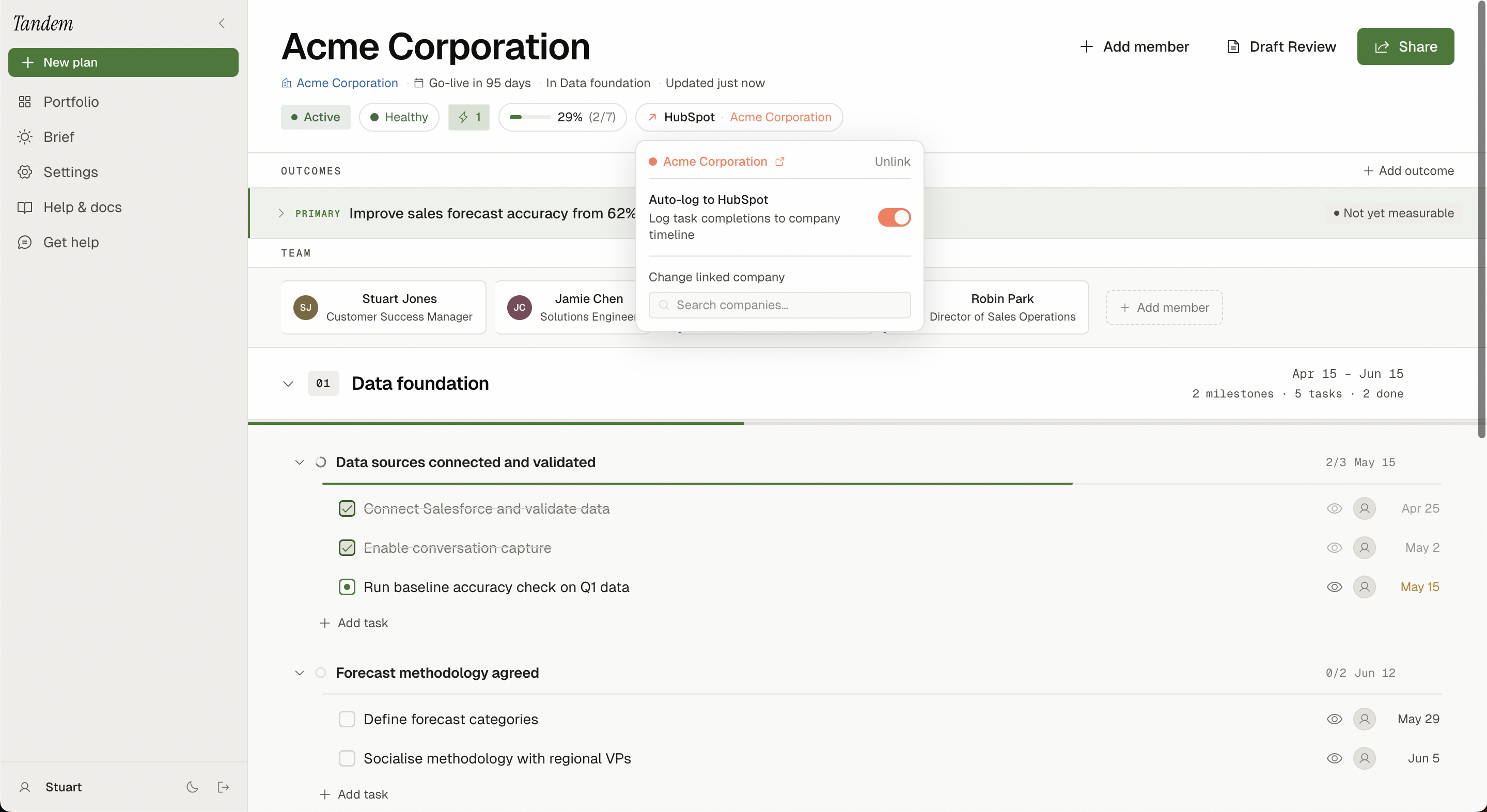 SS-026 · Plan masthead showing HubSpot auto-log toggle
Disconnecting
Go to Settings → Integrations and click Disconnect. Existing logged activities in HubSpot are not affected.
Related
Was this helpful?
Last updated May 4, 2026